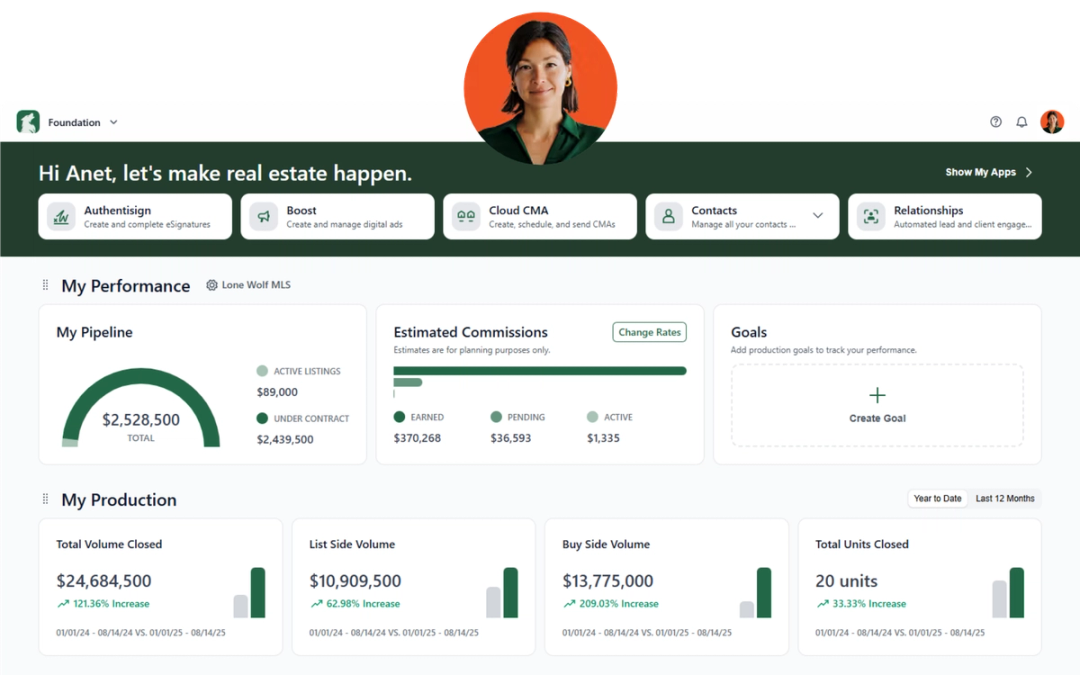
Each month, we’re rolling out software updates designed to make your day smoother—whether you’re nurturing leads, managing transactions, or running your business. Here’s everything new from Lone Wolf for November.
Lone Wolf Front Office
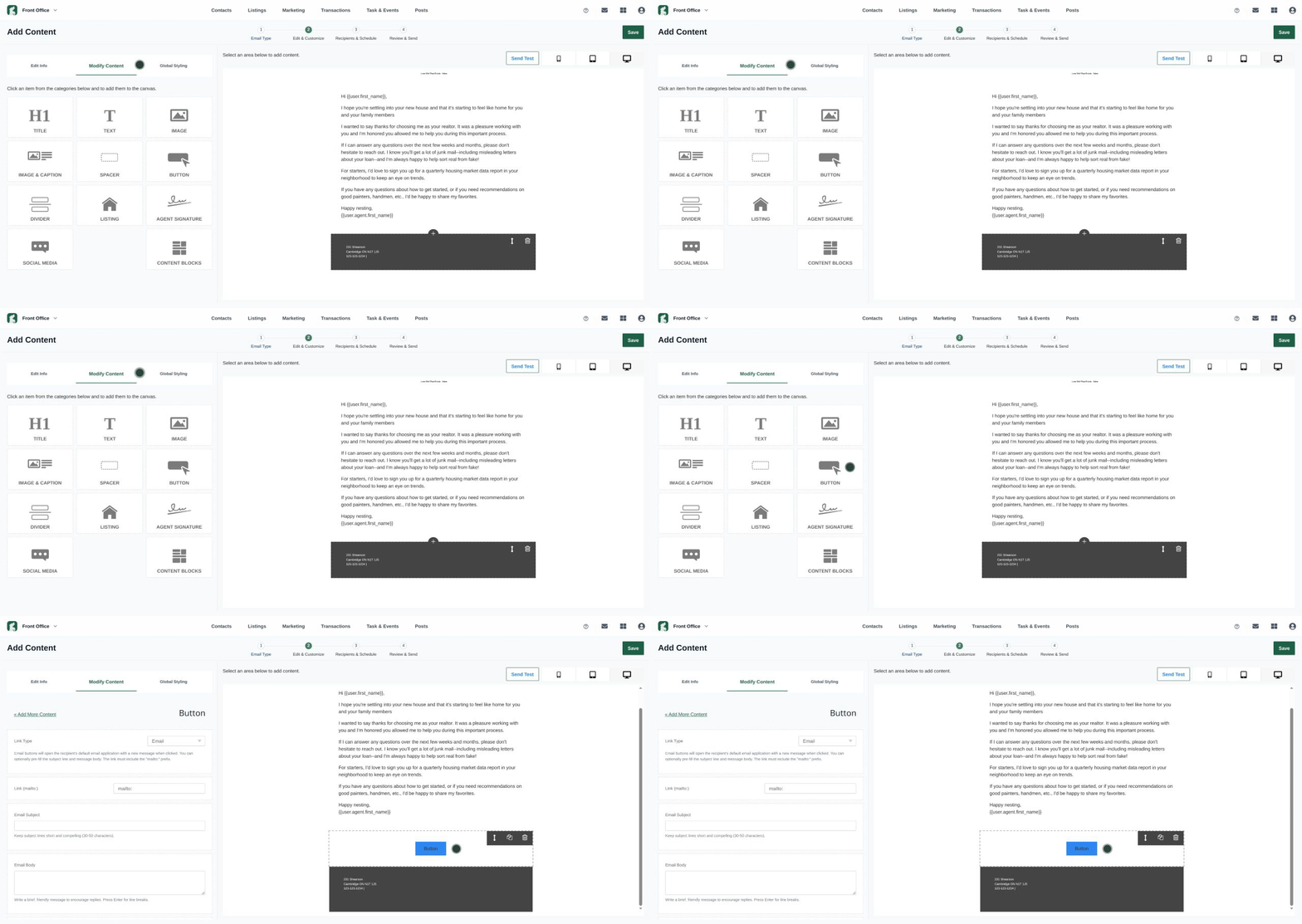
Email reply button for eBlasts
You can now add a reply button to your marketing emails that automatically pre-fills the subject line and body for the customer’s response. This keeps conversations aligned with your campaign and helps you get faster, more consistent replies.
You’ll find this option in the Edit & Customize section when creating or editing an eBlast.
Update your marketing text number by area code
Keep your contact information consistent by updating the area code of your marketing text number directly in your profile.
Until now, your marketing texting number was automatically assigned based on the area code of your personal cell phone. But for many agents, that doesn’t always match the region where they actually work. This mismatch can make outreach feel less local—and in some cases, more likely to be ignored or flagged as spam.
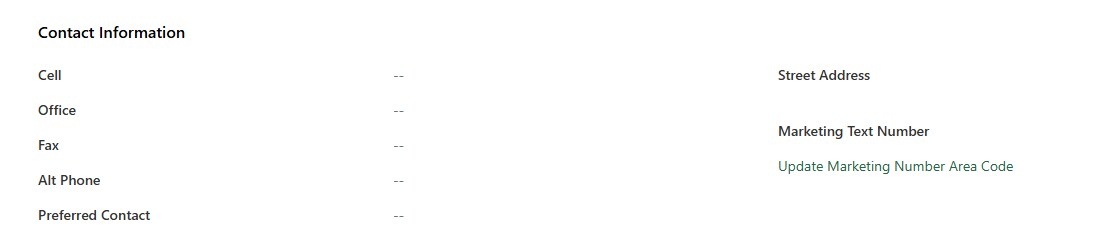
To help you stay aligned with your market, you can now choose a new area code for your marketing text number from any available region. This gives you the flexibility to match your office’s local area code, build trust with leads, and ensure your texts look familiar at first glance.
Navigate to My Profile → Edit Profile → Update Marketing Number Area Code.
See Update your profile (Front Office) for more information on how to update your profile.
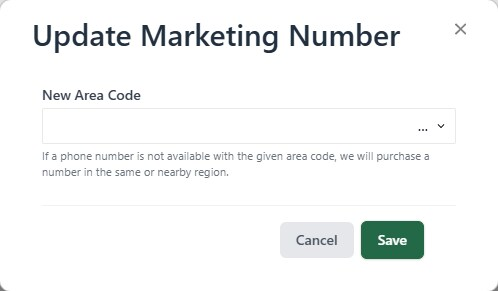
Note: This update takes effect immediately. Leads in active conversations will receive messages from the new number, so consider notifying them about the change.
Lone Wolf Relationships
A new, streamlined To Do page
We’ve refreshed the To Do page to make it cleaner, clearer, and easier to use. Tasks are now organized by tabs—Today, Overdue, Upcoming, No Due Date, Completed, and All—so you can quickly focus on what matters most.
Filters can still be applied in any tab for more refined views.
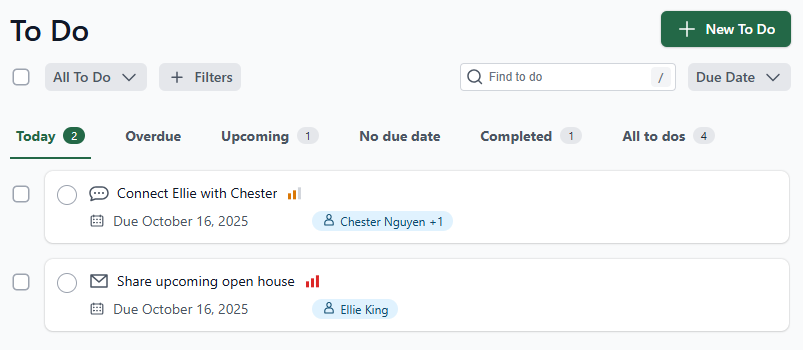
For more information, see Create a to do (Relationships) or Filter your to dos (Relationships)
Email signature enhancements
Emails sent from Relationships now include your email signature by default. You can update or disable this setting anytime in Settings → Email Settings.
See Update your email signature (Relationships) for more information.
Lone Wolf Back Office
Agents in Transaction Records > 2.1 - Transactions > List tab
Agents now appear on the List tab as long as they’ve been attached to the transaction on the Agent Info tab. This improves system performance, fixes display inconsistencies, and ensures you always have a complete, accurate view of who’s involved in each transaction—making it easier to track activity and manage your team.
New report functionality
We’ve added several new reports to give you deeper visibility into performance, partnerships, and productivity—helping you make more informed decisions and uncover new opportunities for growth.
Click here to view these reports directly in our Report Index Tool
The following reports were added to the solution:
- 2.L.6 - Outside Broker Referral Performance
- 2.P.C.6 - Mortgage/Title Company Statistics
- 2.T - Print Multiple Transaction Records
- T.T - Meeting Information
- 2.M.3.1 - BHHS Batch Transmission (Berkshire Hathaway HomeServices customers only)
- 2.P.5.Q - Quartile
Click here to to learn how to run reports, and how to find the reports you need.
Lone Wolf Transact
Enhanced tools for faster transactions
This month’s Transact updates are all about helping you move through deals more quickly, find what you need faster, and keep every transaction running smoothly from start to finish.
Here’s what’s new—and how it helps you:
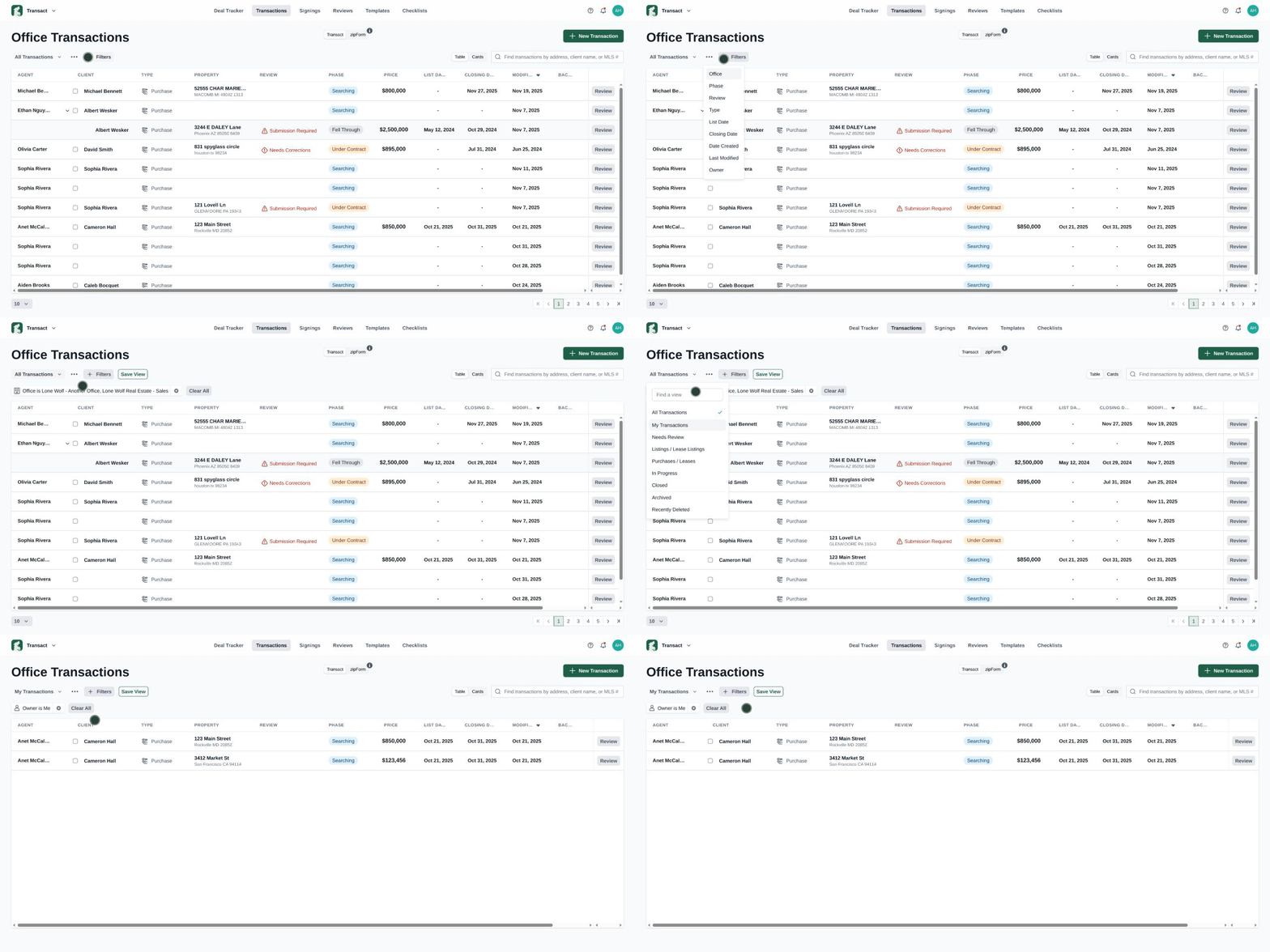
- Page renamed to Office Transactions with pinned Agent column
Get clearer context on every transaction and quickly identify who’s involved, making team oversight easier. - Enhanced office filter with office addresses
Find the right office faster and avoid mix-ups—especially helpful for teams with multiple locations. - New “My Transactions” filter for broker admins
See only the transactions you manage, helping you stay focused and avoid digging through irrelevant files.
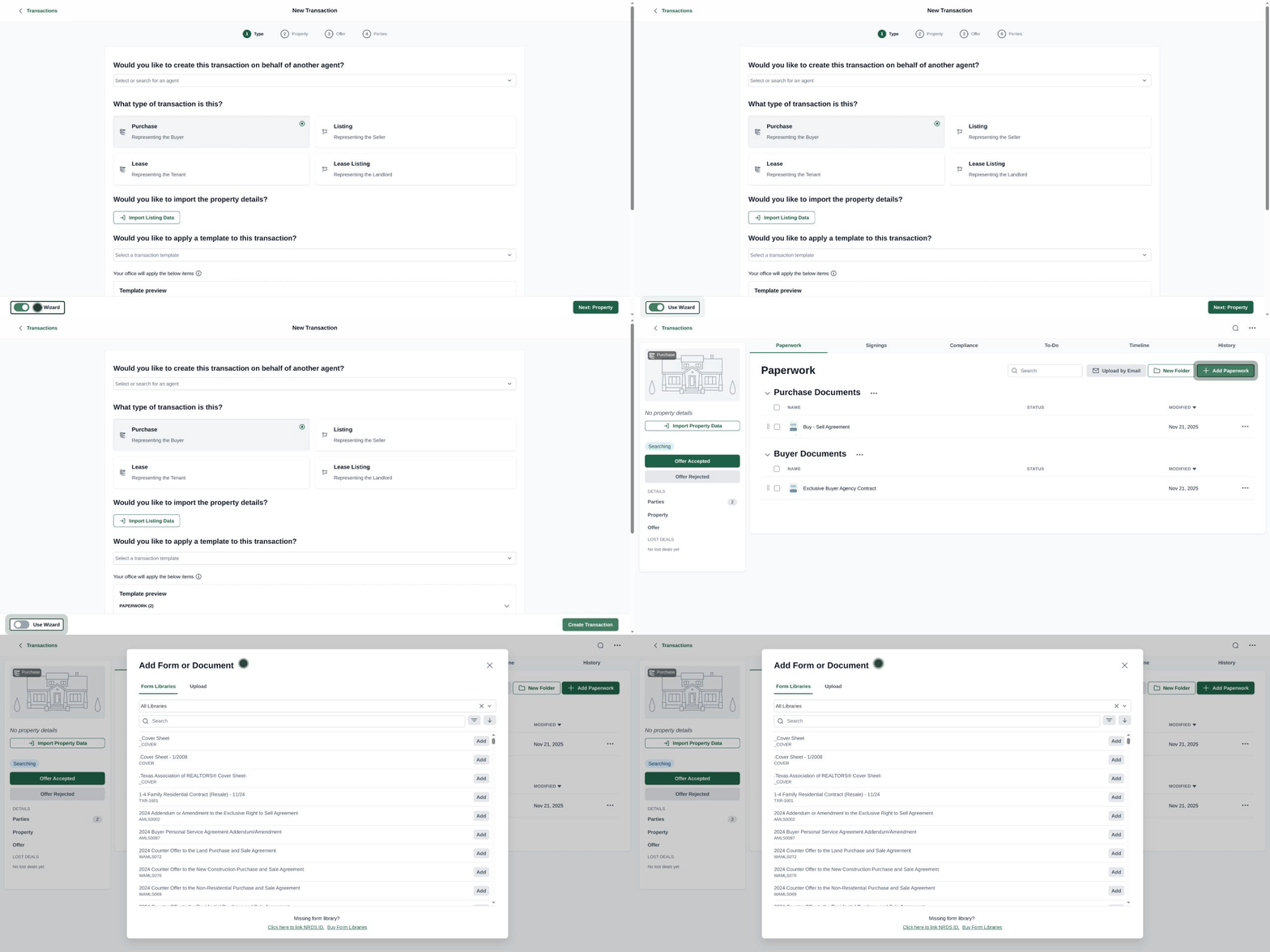
- Skip the Create Transaction Wizard
Jump straight into building a new transaction when you already know what you need—perfect for high-volume workflows. - “Add Document” renamed to “Add Paperwork”
Clearer labeling makes it easier to know exactly what you can upload, reducing errors and saving time.
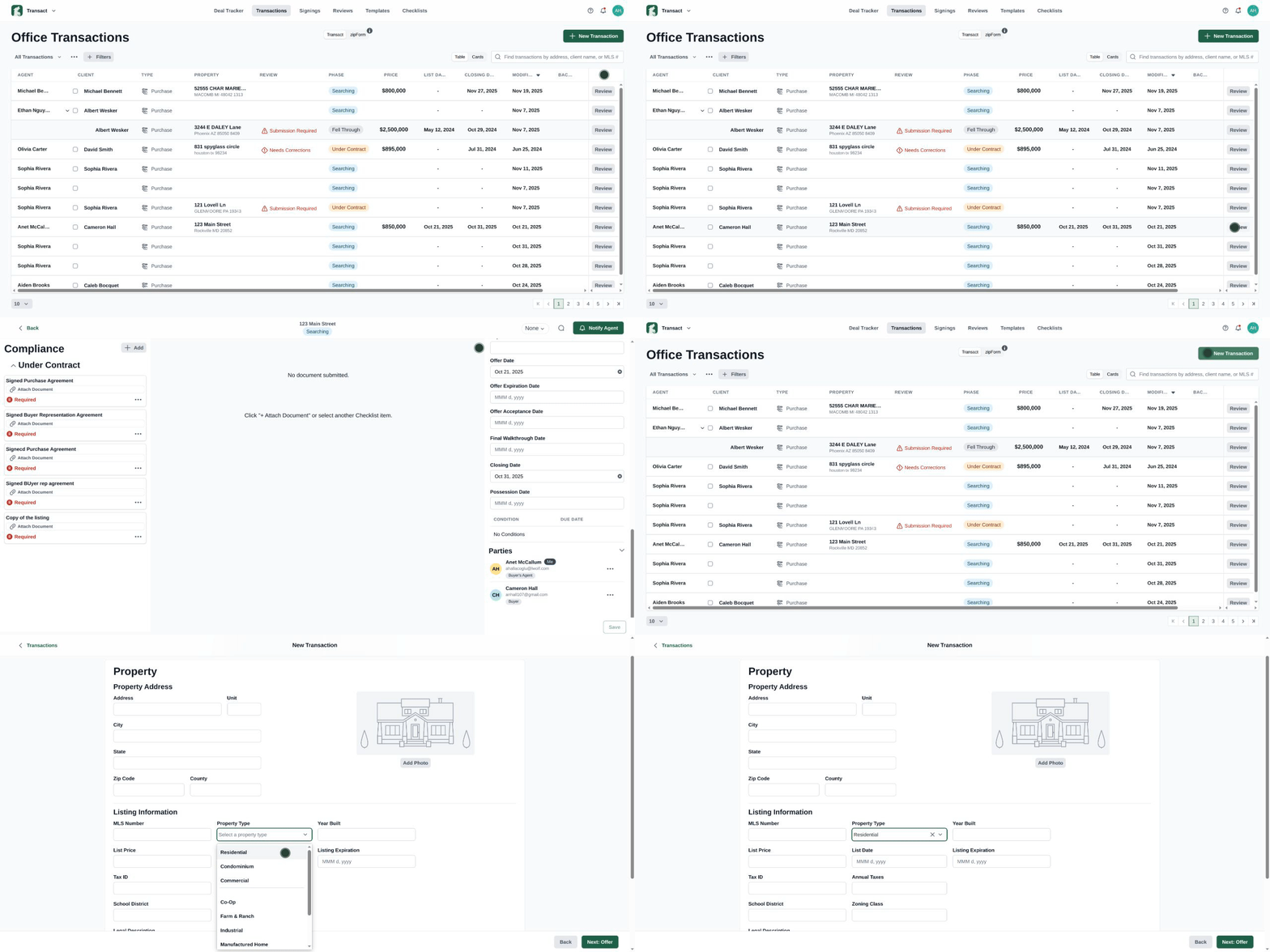
- Direct navigation from Quick Review to Full Transaction
Move seamlessly from a high-level check to full details without backtracking, improving review efficiency. - Property type icons added to the transaction wizard
Quickly identify the transaction type at a glance, reducing confusion and speeding up setup.
Lone Wolf Foundation
Expanded admin tools
Admins can now assign users to multiple offices, with a designated primary office. This update includes bulk actions, making it easier to manage access across your entire team.
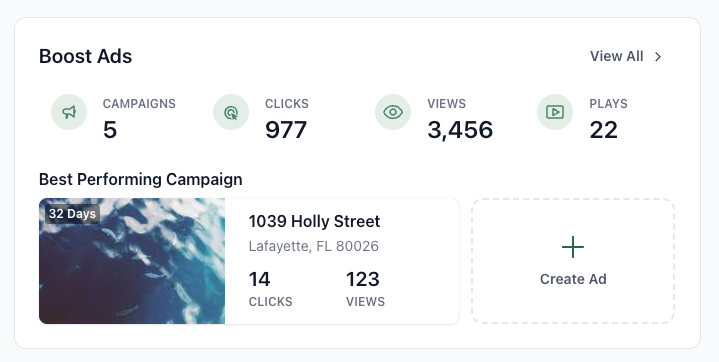
New Lone Wolf Boost widget for agents
Agents now have access to a new Boost widget, giving them an at-a-glance view of:
- Total active ad campaigns
- Clicks, views, and plays over the last seven days
- Details for the two most recent campaigns
Introducing the new broker dashboard
Broker view is now available in the Foundation dashboard. This new workspace consolidates Production Metrics, Pipeline Activity, and Agent Performance into one clear dashboard—giving brokers real-time insight to lead with confidence.
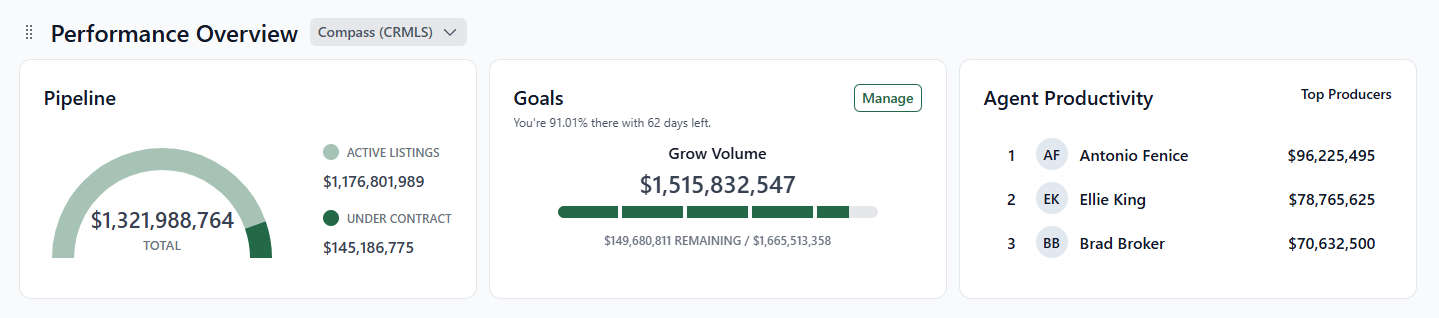
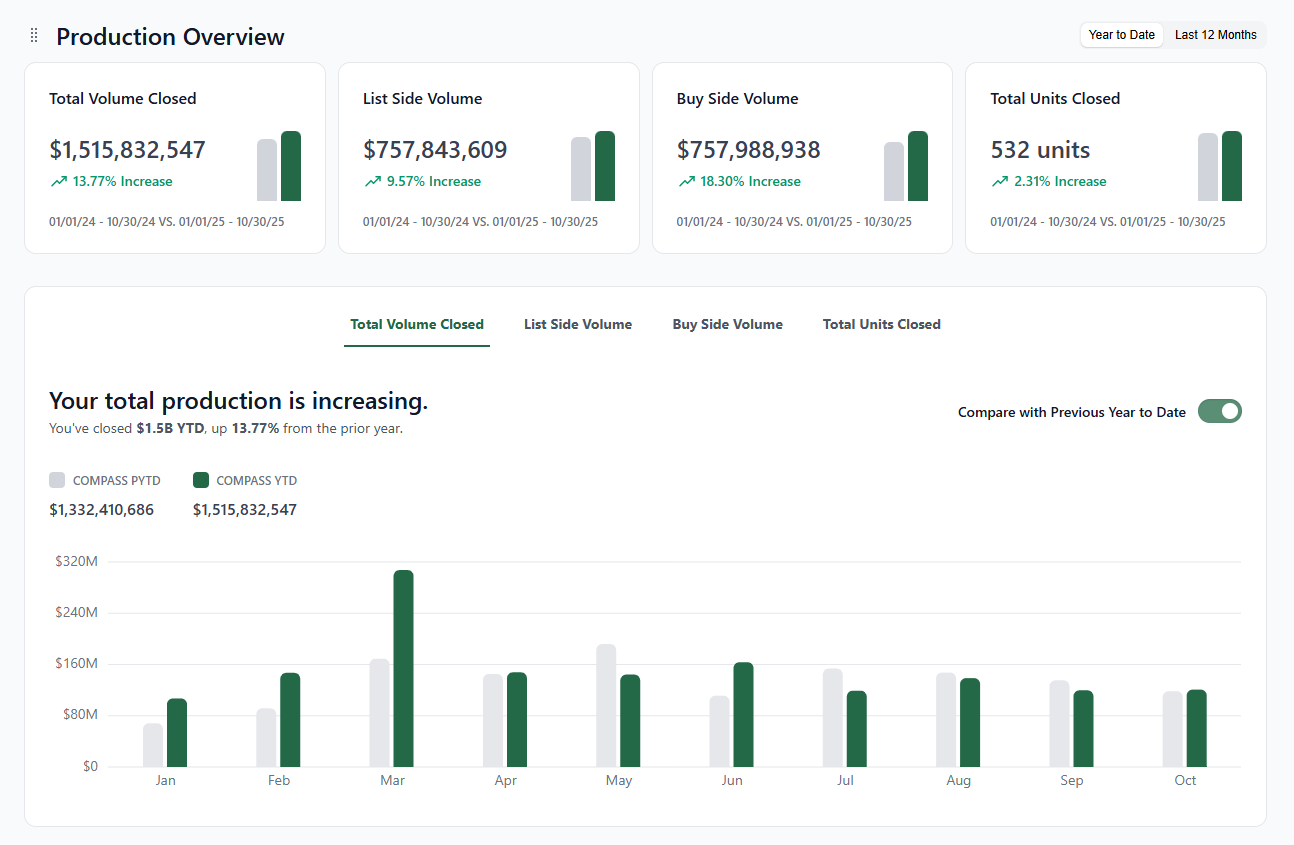
See About Foundation Dashboard for more information.
Stay in the loop
We’ll publish Release Notes every month to keep you informed about what’s new and what’s next. Check back for our December updates, and in the meantime, explore additional how-to guides and knowledge base articles to get the most out of your Lone Wolf tools.
Other resources
See more eBooks, webinars, and blog articles to help you stay ahead with strategies designed for your success.